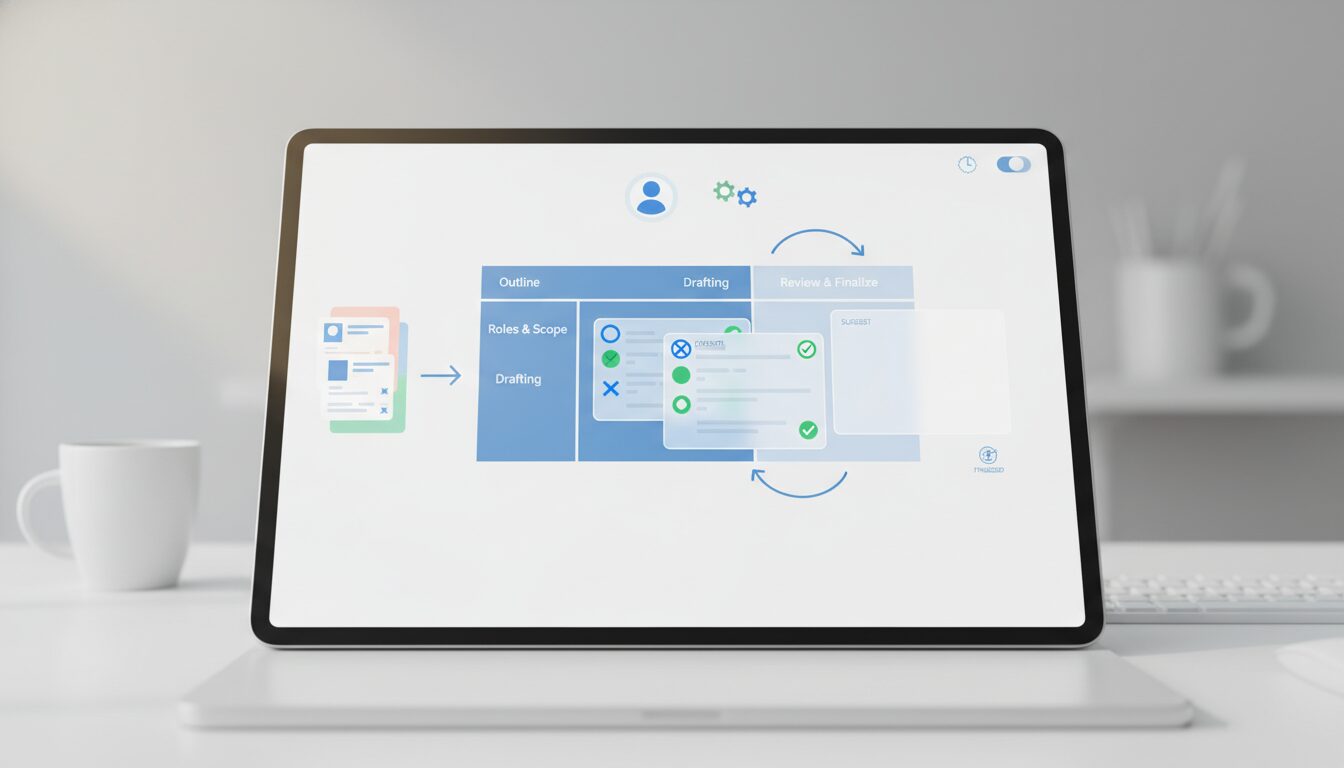
You’ve been there: a critical Google Doc, multiple collaborators, and suddenly, a crucial paragraph vanishes, or conflicting edits turn a cohesive document into a patchwork. Collaborative tools are powerful, but they can quickly become a source of frustration and inefficiency if not managed correctly.
How can you ensure your team minimizes these common pitfalls and achieves seamless document productivity in Google Docs?
Quick summary for busy readers
- Proactive planning and clear role assignments are your first line of defense against collaborative chaos.
- Master Google Docs’ ‘Suggesting’ mode, comments, and version history for controlled, transparent editing.
- Designate a single document owner for final review and resolution to maintain document integrity and cohesion.
Before You Begin: Setting the Stage for Success
Many collaborative errors stem from a lack of upfront clarity. Before anyone even types a word, take a moment to establish some ground rules. This foundational work prevents countless headaches and boosts overall document efficiency.
- Define the Document’s Purpose and Scope: Make sure everyone understands what the document aims to achieve and what content it should cover. This aligns all contributors from the outset, preventing off-topic additions or unnecessary deletions.
- Assign Specific Roles and Deadlines: Don’t let everyone be responsible for everything. Clearly assign roles such as content creator, editor, reviewer, or fact-checker. Set realistic deadlines for initial contributions and subsequent feedback rounds. This creates accountability and ensures timely progress.
- Agree on a Standard Editing Protocol: The most crucial agreement is how edits will be made. Establish a team rule: always start in ‘Suggesting’ mode for initial revisions. This ensures consistency and prevents accidental permanent changes, a key step for consistent, error-free collaboration.
During Collaboration: Navigating Edits and Feedback Effectively
Once the document is live and contributions begin, smart use of Google Docs’ features is key to maintaining order and clarity, directly impacting your team’s efficiency.
- Always Use ‘Suggesting’ Mode for Proposed Changes: This is non-negotiable for smooth collaboration and a critical practice for controlled, transparent editing. ‘Suggesting’ mode keeps the original text intact until approval and provides a clear audit trail of who proposed what, when. It’s like writing in pencil before making permanent ink changes.
- Utilize Comments for Targeted Feedback and Questions: Don’t try to explain complex changes within the document text itself. Use comments for questions, explanations, and discussions. Tag colleagues using @name for direct attention and faster resolution. This keeps conversations organized and tied directly to the relevant text.
- Regularly Check ‘Version History’: This powerful feature is your safety net. Get into the habit of checking ‘Version history’ to track changes, compare different versions of the document, and revert to an earlier state if necessary, without losing valuable work. It’s invaluable for troubleshooting or recovering accidentally deleted content, helping to prevent errors.
- Schedule Quick Sync-ups for Complex Sections: For highly complex sections or critical discussions that require immediate resolution, a quick chat or virtual huddle can be more efficient than a long comment thread. This avoids misunderstandings and speeds up decision-making.
Mistake #1: Direct Editing Without ‘Suggesting’ Mode
This is perhaps the most common and damaging mistake in Google Docs collaboration, severely hindering document efficiency.
- Why it breaks: When collaborators jump straight into ‘Editing’ mode, changes are immediately permanent. This makes it incredibly difficult to track individual contributions, review proposed edits, or revert specific modifications without affecting other parts of the document. It often leads to accidental deletions, unapproved content making it into the final version, and disputes over authorship or content. You lose the ability to easily accept or reject specific changes.
- Prevention: Establish a clear team protocol to always use ‘Suggesting’ mode for initial edits and revisions. Only switch to ‘Editing’ mode for final approvals by the designated document owner or after all suggestions have been accepted. This creates a transparent and controlled editing environment, a vital step for error-free teamwork.
- Good Practice Example:
A marketing team drafts new website copy. Sarah uses ‘Suggesting’ mode to propose changes to the product feature descriptions. Her manager, John, can easily review her proposed edits, accept them with a click, or add a comment asking for clarification, all without altering the original text until approved. This workflow significantly enhances accuracy and control.
Mistake #2: Overlapping Edits Without Communication
While Google Docs excels at simultaneous editing, a lack of coordination can still cause chaos and reduce efficiency.
- Why it breaks: If multiple people are actively rewriting the exact same paragraph or section at the same time, it can lead to conflicting ideas, fragmented content, or one person’s work inadvertently overwriting another’s thought process. This results in inefficient rework, confusion, and frustration as contributors try to piece together disparate ideas.
- Prevention: Assign specific sections or paragraphs to individual contributors. If a section is particularly collaborative, use comments to ‘claim’ a section you’re actively working on. For instance, you might add a comment:
“I’m revising this section now – please hold off on edits for 30 minutes.”
For highly sensitive or frequently edited sections, consider a quick chat or virtual huddle to discuss changes live, or assign a lead editor for that specific part to consolidate input. This strategy helps prevent errors by ensuring clear ownership and coordination.
- Bad Practice Example:
Two colleagues, Alex and Ben, are simultaneously editing a project proposal. Alex is refining the introduction while Ben is adding a new section on deliverables. Alex accidentally deletes a sentence in the introduction that was crucial for Ben’s new section. Because they were both in ‘Editing’ mode, the change is immediate and permanent, and Ben only realizes the missing context much later, causing significant rework. This illustrates a common pitfall in collaborative document creation.
Mistake #3: Ignoring Unresolved Comments and Suggestions
A document filled with unresolved feedback is an unfinished document, regardless of how much text is present, severely impacting document quality and timely completion.
- Why it breaks: Unresolved comments mean questions go unanswered, feedback isn’t incorporated, and discussions are left hanging, leading to an incomplete or unclear document. Unaccepted or unrejected suggestions leave the document in a perpetual ‘draft’ state, making it difficult to determine the final approved content. This can cause significant delays in project completion and lead to a final product that doesn’t meet all requirements.
- Prevention: Schedule dedicated time for reviewing and resolving all comments and suggestions. The document owner or designated editor should systematically go through all unresolved items. Use the ‘Mark as resolved’ feature for comments once addressed, and promptly accept or reject suggestions. If a specific person needs to address a comment or suggestion, follow up directly with an @mention. Don’t let comments linger indefinitely. This proactive approach is essential for maintaining document integrity.
- Bad Practice Example:
A legal team collaborates on a contract, accumulating numerous comments from different stakeholders asking for clarifications or proposing alternative wording. The document owner never systematically reviews or resolves them. When the document is sent for final review, many questions resurface, leading to delays and a rushed, potentially flawed final version. This highlights the importance of resolving feedback for a polished final document.
After Collaboration: Finalizing and Archiving for Integrity
The collaboration isn’t truly complete until the document is finalized and secured, ensuring the highest level of document quality and integrity.
- Designate a Document Owner for Final Review: One person, typically the document owner, should be responsible for the final review. This involves systematically going through and accepting or rejecting all remaining suggestions and resolving all comments. This ensures a single point of accountability for the final content and helps ensure a polished, error-free final product.
- Finalize the Document: The designated owner ensures all feedback is addressed, the content is cohesive, consistent, and ready for its intended purpose (e.g., publishing, submission, presentation). This step is crucial for maintaining the document’s integrity and quality.
- Consider Archiving Significant Versions: If required for record-keeping, compliance, or future reference, consider archiving significant versions of the document. This might involve creating a final PDF copy or simply making a specific ‘Version history’ entry.
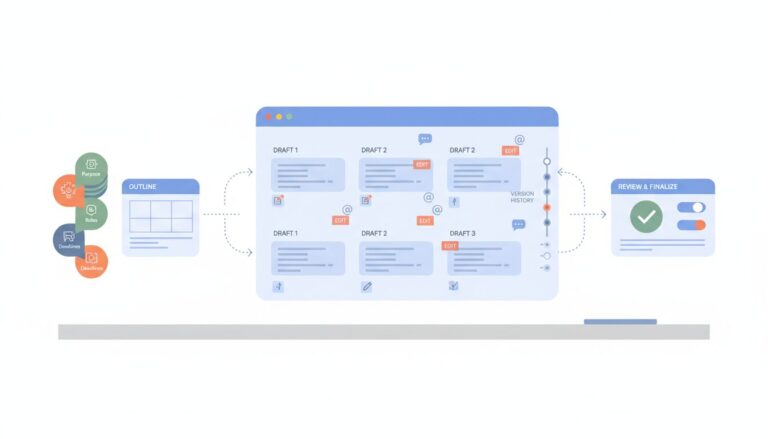
Quick Checklist for Minimizing Mistakes:
- Define document purpose, roles, and deadlines upfront.
- Commit to using ‘Suggesting’ mode for all initial edits and revisions.
- Utilize comments effectively for targeted feedback and questions, using @mentions.
- Regularly review ‘Version history’ for tracking changes and potential recovery.
- Assign a clear document owner for final review, approval, and resolution.
Treat Google Docs collaboration as a structured process, not a free-for-all. Proactive communication, clearly defined roles, and consistent application of core features like ‘Suggesting’ mode, comments, and version history are your strongest defenses against errors. By adopting these practices, your team can transform potential headaches into highly efficient, error-free teamwork, enhancing overall efficiency and delivering cohesive, high-quality documents every time.
- [1]
Google Docs Help
Official help for drafting and revising text