
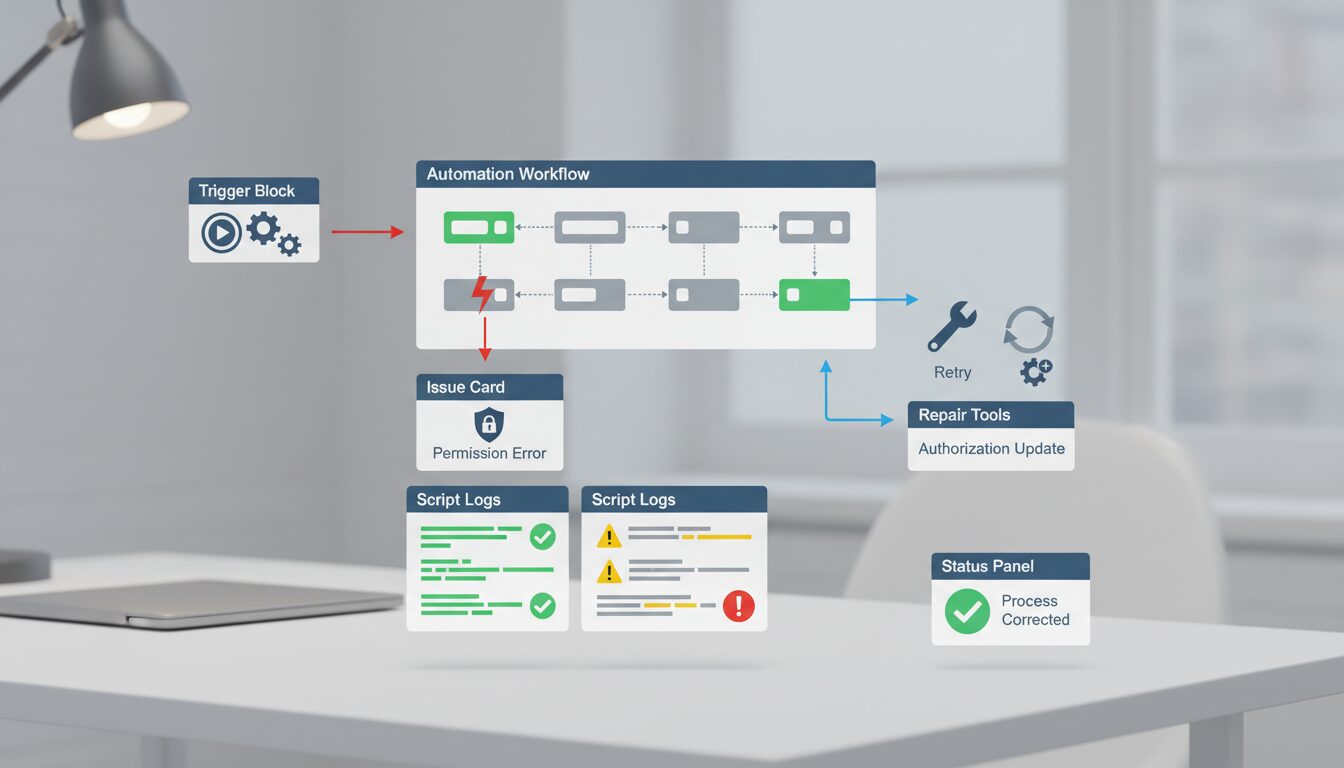
You’ve built a Google Apps Script to automate a critical workflow—maybe it’s a weekly report from a Google Sheet, a client follow-up email, or a CRM export. It runs perfectly on your machine. But when a colleague tries to use it or a scheduled trigger suddenly fails, you’re hit with a “Permission denied” or “Authorization required” error. This isn’t just a minor glitch; it stops your automation cold.
Quick summary for busy readers
- Always start with the Execution Log: It pinpoints the exact permission error and the service involved.
- Re-authorize the script manually: Often, new features or shared usage require a fresh grant of permissions.
- Verify all users’ access: The script runs with the permissions of the *person running it*, not always the developer.
So, why do these permission errors happen, and how can you fix them quickly to get your scripts back on track?
For those in a hurry, here’s the quick fix checklist:
- Always start with the Execution Log. It pinpoints the exact permission error and the Google service involved.
- Re-authorize the script manually. Adding new features or sharing the script often requires a fresh grant of permissions.
- Verify all users’ access. The script runs with the permissions of the person *running it*, not always the developer.
How to Fix Google: what to focus on first
In practice, How to Fix Google is most useful when you match the tool to the task instead of expecting one tool to do everything equally well.
The Core Misconception: Who’s Running the Show?
The most common reason for permission errors is a misunderstanding of which Google account is executing the script. A script doesn’t run in a vacuum; it runs under the identity of a specific user and inherits their permissions.
This means if a script is shared, deployed as a web app, or triggered by another user, it uses *their* Google account permissions, not yours. This is precisely why a script might work flawlessly for you but fail for a colleague. For example, if your script needs to edit a “Sales Pipeline” Google Sheet, it will fail for any user who only has “Viewer” access to that specific file.
First Stop: How to Check the Execution Log
Before you start changing code, your first and most important stop is the Execution Log. This is where Apps Script tells you exactly what went wrong and where.
- In your Apps Script project, click the clock icon on the left sidebar labeled “Executions”.
- Look for entries with a red “Failed” status. Click on one to see the details.
- Find the error message. You’re looking for phrases like:
Permission denied: DriveApp
Authorization is required to perform that action.
The log will almost always tell you *which* Google service (like DriveApp, GmailApp, or SpreadsheetApp) encountered the permission issue. This clue is your starting point for fixing the problem.
Re-authorize: The Quickest Fix for Permission Errors
Often, the problem is that the script has been updated to use a new Google service, and it simply needs you to approve the new permissions. Forcing a re-authorization is the fastest way to solve this.
- Open your script in the Apps Script editor.
- At the top, select any function from the “Select function” dropdown menu and click “Run”.
- A Google authorization pop-up window should appear, asking you to “Review permissions”.
- Carefully review the permissions the script is requesting and click “Allow”. Ensure you are logged into the correct Google account when doing this, especially if you manage multiple accounts.
This simple step often resolves errors that appear after you’ve added new code, such as adding `GmailApp.sendEmail()` to a script that previously only worked with Google Sheets.
Verify User and Resource Permissions
If re-authorizing doesn’t work, the next step is to check that the user running the script has the correct permissions for the files and resources it needs to access.
- For Google Sheets, Docs, or Slides: If your script modifies a file (e.g., `setValue()` in a Sheet), the user running it must have “Editor” access to that file. If it only reads data, “Viewer” access might be sufficient, but “Editor” is safer.
- For Google Drive: If your script creates files in a specific folder or reads files from it, the user needs at least “Viewer” access to that folder to see its contents and “Editor” access to add or modify files.
- For Google Calendar: If the script needs to create or modify events on a specific calendar, the user must have the appropriate sharing permissions for that calendar.
Check the sharing settings on every Google file, folder, or calendar your script touches. Make sure the account that is executing the script has the level of access it needs to perform its tasks.
Beyond Basics: When to Edit the appsscript.json Manifest
Sometimes, Apps Script doesn’t automatically detect all the permissions your script needs, especially with web apps or when calling external services. In these cases, you need to state the permissions explicitly in a file called the manifest.
- In the Apps Script editor, click the gear icon for “Project Settings”.
- Check the box for “Show ‘appsscript.json’ manifest file in editor”.
- Return to the editor view and click on the `appsscript.json` file.
- Inside the JSON object, you can add or update an array called `oauthScopes`.
For example, if your script uses `UrlFetchApp` to connect to an external API, it needs a specific scope that might not be detected automatically. You would add it like this:
“oauthScopes”: [
“https://www.googleapis.com/auth/spreadsheets”,
“https://www.googleapis.com/auth/script.external_request”
]
After saving the manifest file, run the script again to trigger a new authorization prompt that includes the permissions you just added.
The “Permission Denied” Error After an Ownership Transfer
A particularly common issue in a business setting is when a script suddenly stops working after an employee leaves the company. This is almost always an ownership problem.
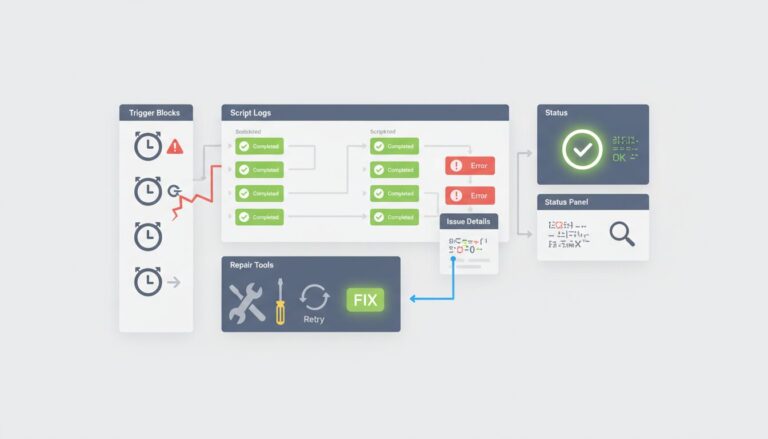
When an Apps Script project’s owner is changed or their account is deactivated, any triggers they created (like time-driven weekly reports or on-form-submit triggers) become invalid because the authorization is tied to their account. The script itself is fine, but the automation that runs it is broken.
The fix is straightforward but manual:
- The new owner must open the Apps Script project.
- Manually run any function to re-authorize the script under their own account.
- Go to the “Triggers” section (the alarm clock icon) and delete all the old, broken triggers.
- Recreate every single trigger from scratch. The new triggers will now be owned by and run as the new user.
Final Checklist for Fixing Permission Errors
When you encounter an authorization error, follow these steps in order. You’ll solve the problem over 90% of the time by the third step.
- Check the Execution Log: See the exact error message and the Google service that failed.
- Manually Re-authorize: Run a function from the editor to trigger the permission pop-up and grant access.
- Confirm User & Resource Permissions: Ensure the user running the script has “Editor” access to all Sheets, Docs, or folders it needs to modify.
- Review `appsscript.json`: For advanced cases, explicitly add any missing OAuth scopes to the manifest file.
- Handle Ownership Changes: If the owner has changed, the new owner must re-authorize the script and recreate all triggers.
- Clear Browser Cache: As a last resort, clearing your browser’s cache and cookies can sometimes resolve issues with stale, invalid authentication tokens.
By systematically checking these common culprits, you can quickly diagnose and fix permission errors, ensuring your Google Apps Script automations continue to save you time and effort without interruption.